Text field

This field allows you to create dynamic input box which will be filled by participants of the envelope processing flow.

Hint

This field can be added to structured and PDF documents.

How to add a text field to the document?

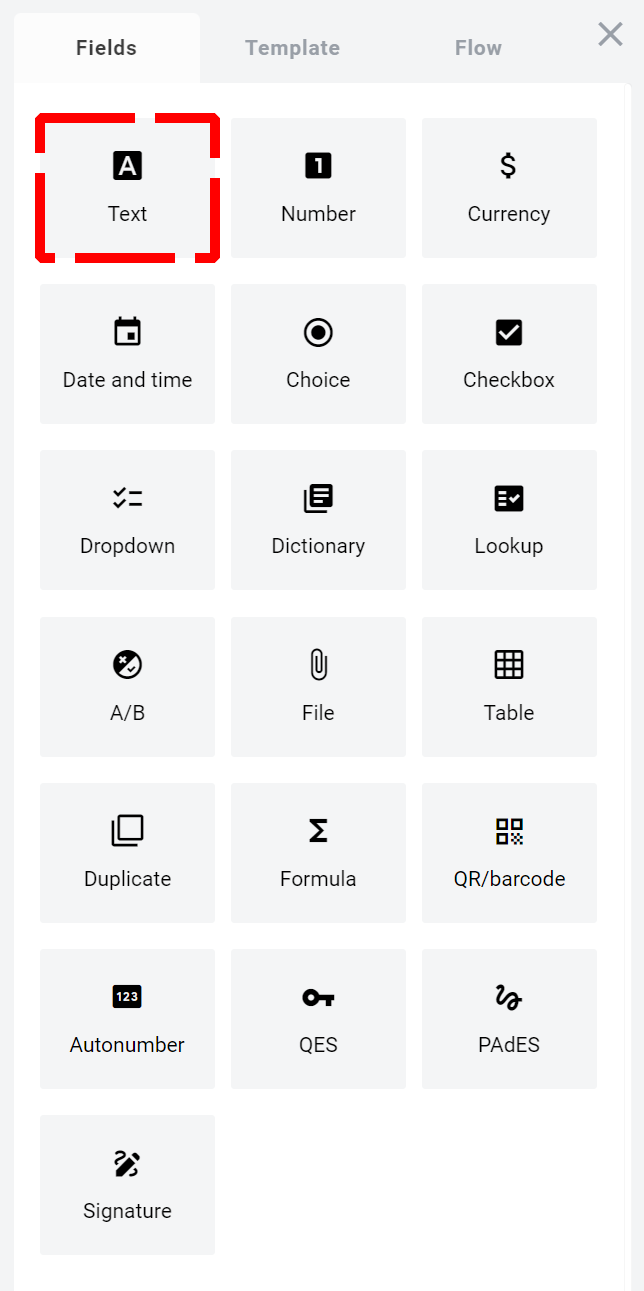
  1. To add field to the document, use one of field adding methods with field icon in the Fields tab of template editor menu
../../../../../../../../_images/textTile.png
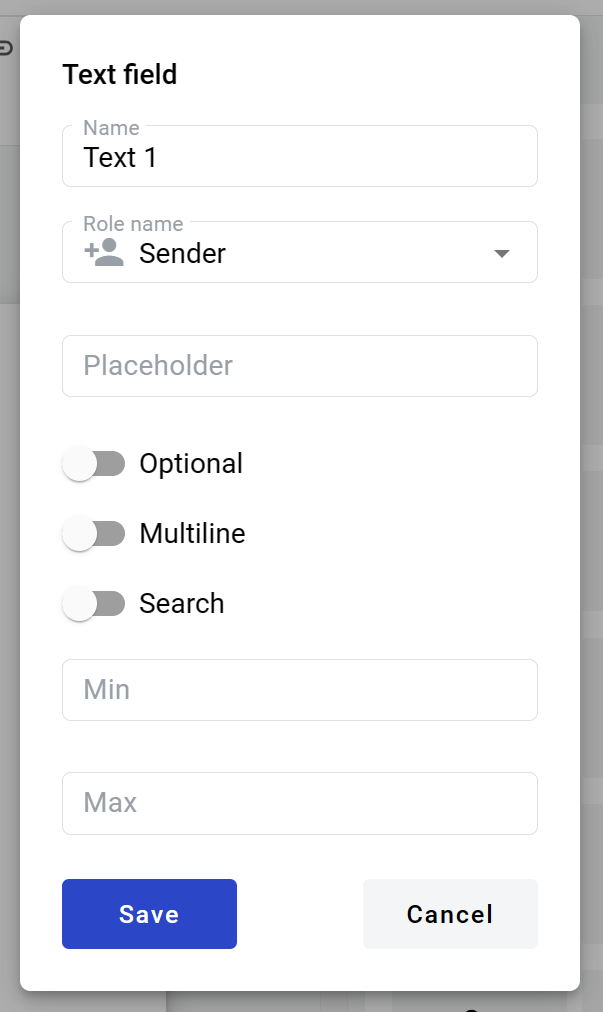
  1. Field creation form will appear, where you should set field attributes
../../../../../../../../_images/textCreate.png
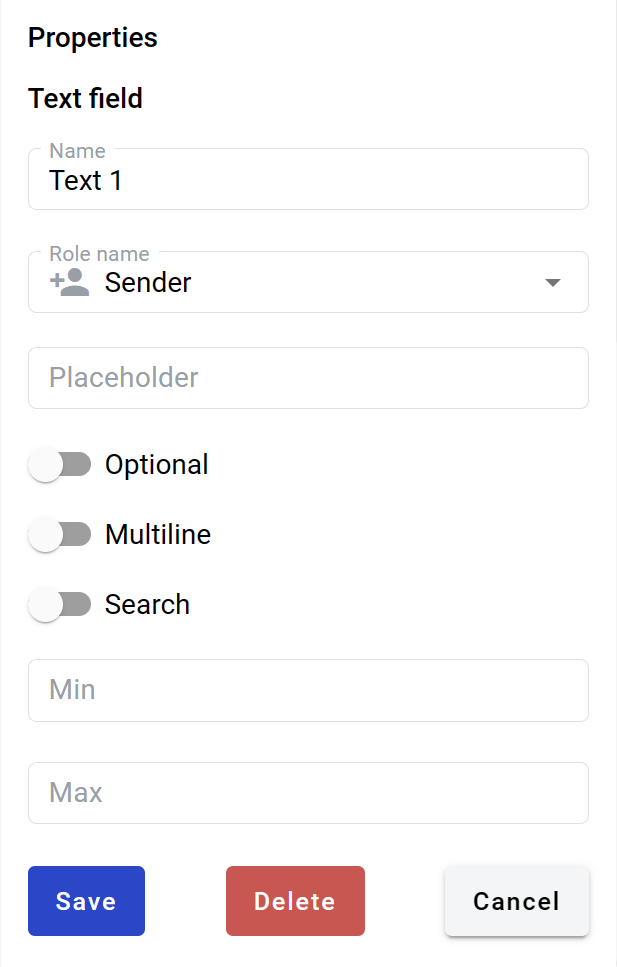
  1. Name - this is a name of a field

  2. Role name - this is a role that will be assigned to fill this field

  3. Placeholder - this text will be shown inside the field before it is filled in (can be left empty; field`s name will be used instead)

  4. Optional - this attribute specifies if this field is mandatory to fill

  5. Search - this attribute specifies if this field should be eligible for mailbox page search

  6. Pattern - this attribute specifies the pattern that will be applied to the field content for validation. You can select one of pattern presets or a custom option to enter your own regular expression

Hint

Next pattern presets are available for DocStudio and YourDoc instances: DUNS (Data Universal Numbering System), Email, Canada postal code, US ZIP code, Bank account (IBAN), Credit card number, GTIN (Global trade item number), GLN (Global location number), LEI (Legal Entity Identifier), USA EIN (Employer Identification Number), USA ITIN/SSN (Individual Taxpayer Identification Number/Social Security Number), Canadian BN (Business Number).

Hint

Next pattern presets are available for WhiteDoc instance: EDRPOU (Enterprise registration code in Ukraine), IPN (Identification number of the taxpayer), EDRPOU or IPN, Email, Phone number (Ukraine), Passport series and number (Ukraine), Bank account (IBAN), Credit card number, GTIN (Global trade item number), GLN (Global location number), Product article, MFO (Interbank financial code, Ukraine).

Hint

Custom option uses ECMAScript (JavaScript) RegEx syntax with some exceptions: lookbehinds and sticky flag are not supported, p{L} is the only supported Unicode property escape.

  1. Fill with profile data - this attribute specifies if this field should be filled with user profile data. If you will select any available option in this field, the according user profile data will be automatically filled in this field when the envelope is opened by the user (but it will still be possible to edit it with any allowed custom value)

Hint

Please note that if Fill with profile data is selected - Pattern, Min, and Max attributes will be applied to this field automatically according to the selected Profile data value if they were not provided manually after the template is saved.

This field also includes additional attributes, which you can access by clicking the “Show advanced settings” button.

../../../../../../../../_images/textAdvancedSettings.png
  1. Tooltip - enables adding a custom tooltip that will be displayed for active fields in the envelope. If left blank, the default tooltip is shown

  2. Multiline - this attribute specifies is this text field will be single or multi lined

Note

Standart character limit is 1000 for singleline filed and 5000 for multiline field.

  1. Min - minimum number of characters required for field (no limit is applied if left empty)

  2. Max - maximum number of characters required for field (standart limit is applied if left empty)

When all attributes are set, you can click the “Save” button and the field will be added. You can click the field to view or update its properties, and also delete it in the same menu.

Please note that the “Show advanced settings” option is available only while no additional attributes have been added to the field. Once at least one additional attribute is added — either during creation or later in edit mode — this option will no longer appear, and all available attributes will be displayed for editing instead.

Hint

If this field contains a link in the envelope, it will be rendered a standard link in the browser (blue font with an underline). You can follow this link from the right-click context menu (any role) or directly click it (only if the field is inactive).