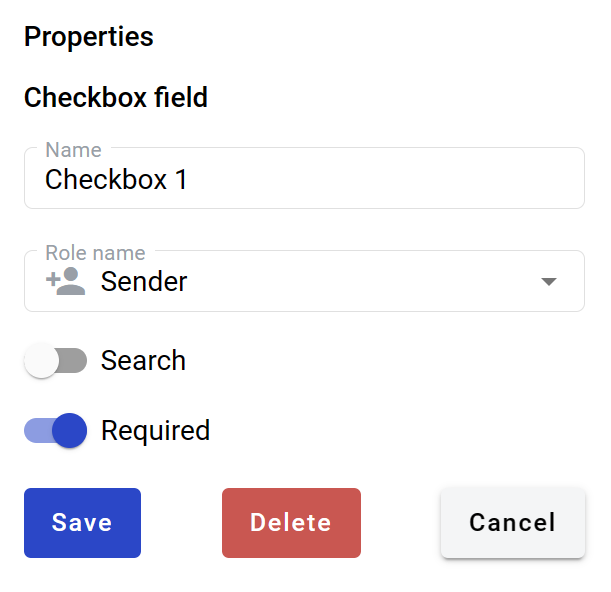
Checkbox field
This field allows you to create a dynamic checkbox. It can be checked or left unchecked by participants of the envelope processing flow.
Hint
This field can be added to structured and PDF documents.
How to add checkbox field to the document
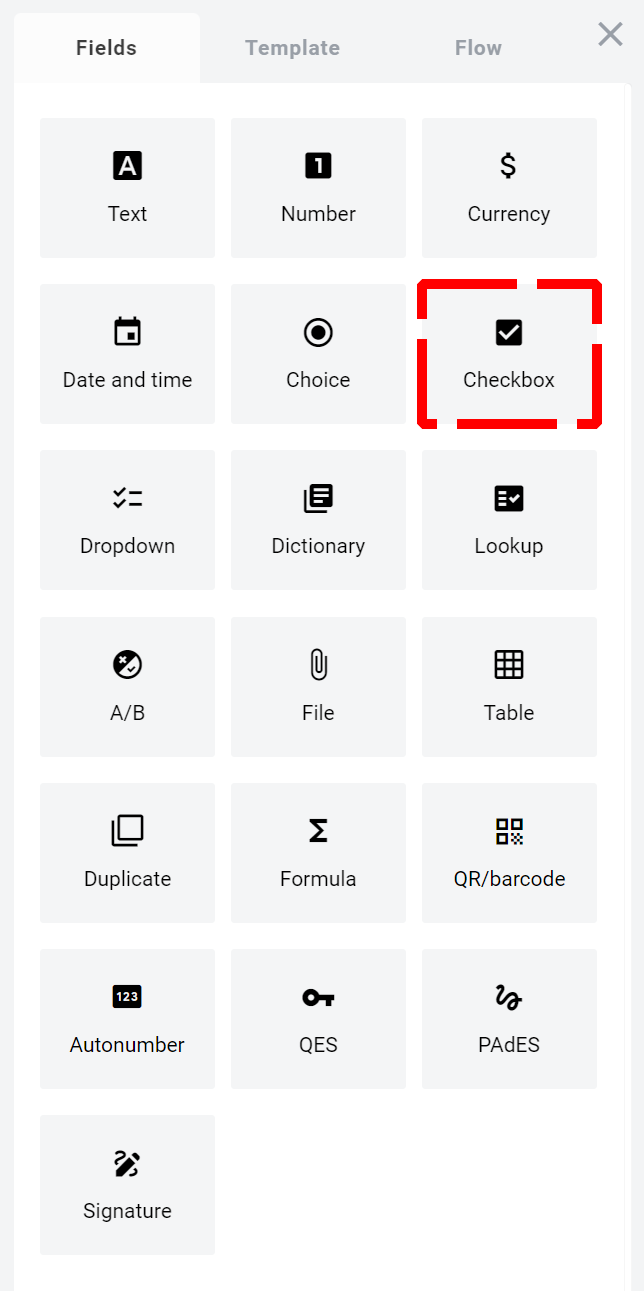
To add field to the document, use one of field adding methods with field icon in the Fields tab of template editor menu
Field creation form will appear, where you should set field attributes
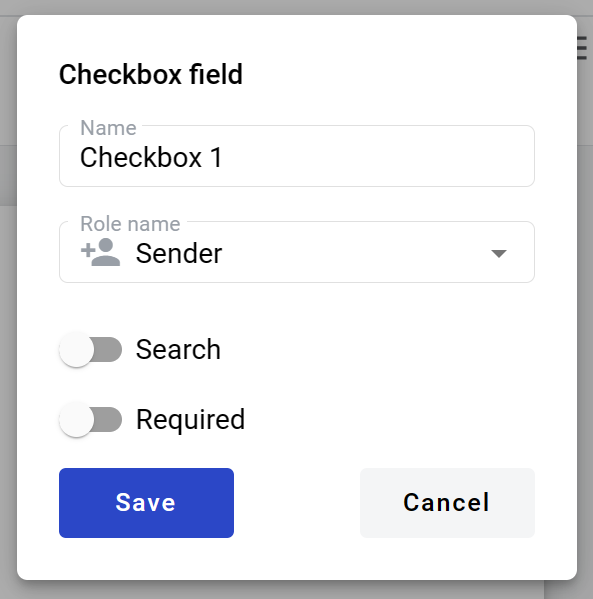
Name - this is a name of a field
Role name - this is a role which will be assgined to fill this field
Search - this attribute specifies if this field should be eligible for mailbox page search
Required - this attribute specifies if this checkbox is mandatory to check
When all attributes are set, you can click Save button and field will be added. You can click field to see its properties and update them. Also you can delete the field in same menu.